What is Google 2FA?
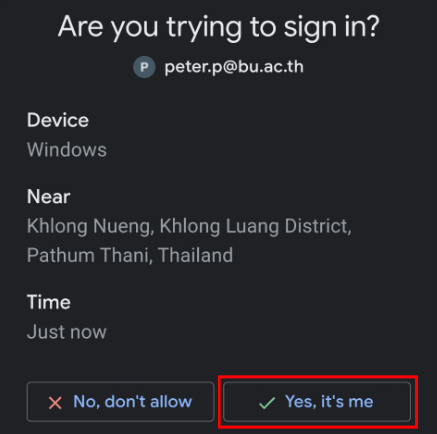
It adds an extra layer of security to your account. When you sign in, a notification (Google Prompt) will pop up on your mobile phone asking, “Is this you?” Simply tap “Yes” to log in immediately. It is the most secure and convenient method.
Prerequisites
- Your mobile phone (with the Gmail app installed and logged into your @bu.ac.th account)
- A computer (or a secondary mobile device) to access the setup page
Setup Instructions
Step 1: Access the Setup Page
- On your computer, go to myaccount.google.com and sign in with your @bu.ac.th email.
- Click on Security & sign-in from the left-hand menu.
- Scroll down to find 2-Step Verification and click on it.
- Click Get Started (the system will prompt you to enter your password again).
Step 2: Select Google Prompt
- Choose Google Prompt. At least one registered device must be displayed. If no device appears, please add your @bu.ac.th account to your mobile phone first.
- Click Turn on 2-Step Verification.
- Click Done.
- Once activated, the Security & sign-in menu will show that 2-Step Verification is enabled.
- When signing in next time, a prompt will be sent to your mobile phone. Tap “Yes, it’s me” on your screen. If you receive a prompt when you are not trying to log in, tap “No, don’t allow” to block unauthorized access, and change your password immediately.
Troubleshooting & Quick Solutions